Recovering your 2FA-enabled account
Table of contents
When you have two-factor access enabled on your account, and you lose access to your 2FA device, you may be able to recover your account using the following methods.
When you use a recovery code to log in, npm places a temporary 72-hour security hold on your account. The hold expires automatically 72 hours after it begins and is not extended if you use another recovery code during that period.
While the security hold is active, you can:
- Log in to your account.
- Browse, view, download, and install packages.
- Change your password.
- Add a new 2FA method to secure your account.
You cannot:
- Publish or unpublish packages.
- Create access tokens.
- Change package settings or maintainers.
- Change organization or team membership.
- Change billing information or account settings.
- Change existing 2FA methods.
The security hold cannot be lifted early and expires automatically after 72 hours, with no action required. If you did not use a recovery code, contact npm Support immediately because your account may have been compromised.
Misplaced second factor device
If you have misplaced the device that provided second-factor authentication, you can use the recovery codes generated when you enabled 2FA to access your account.
Using recovery code on the web
-
Locate the recovery codes generated that you have saved.
-
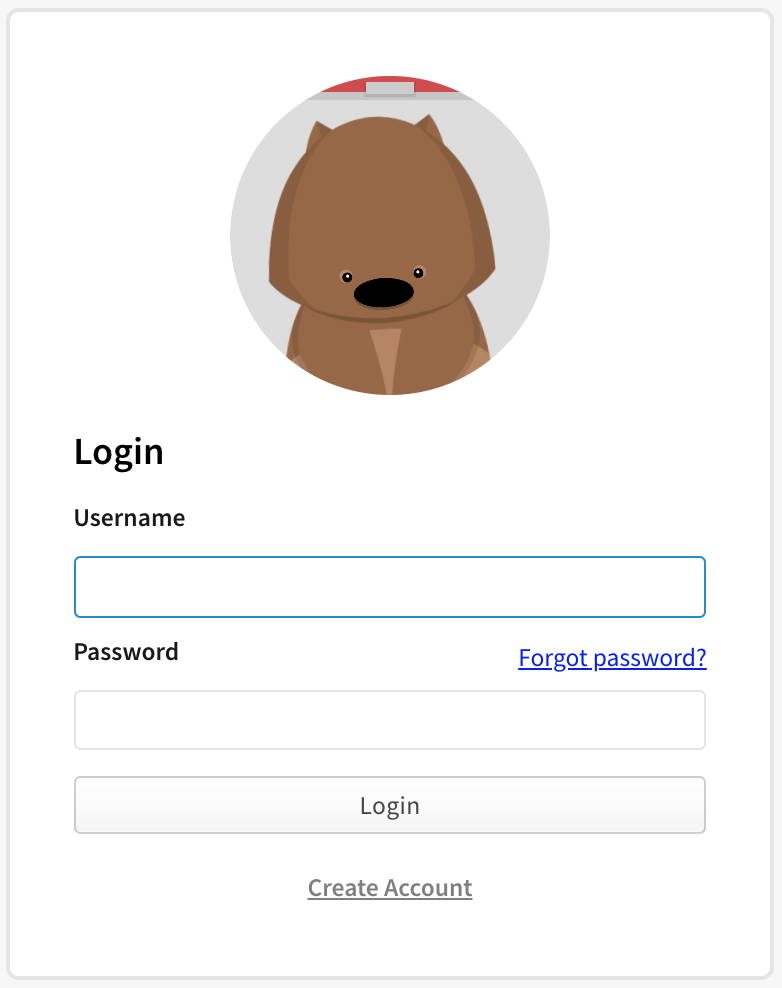
On the npm "Sign In" page, enter your account details and click Sign In.
-
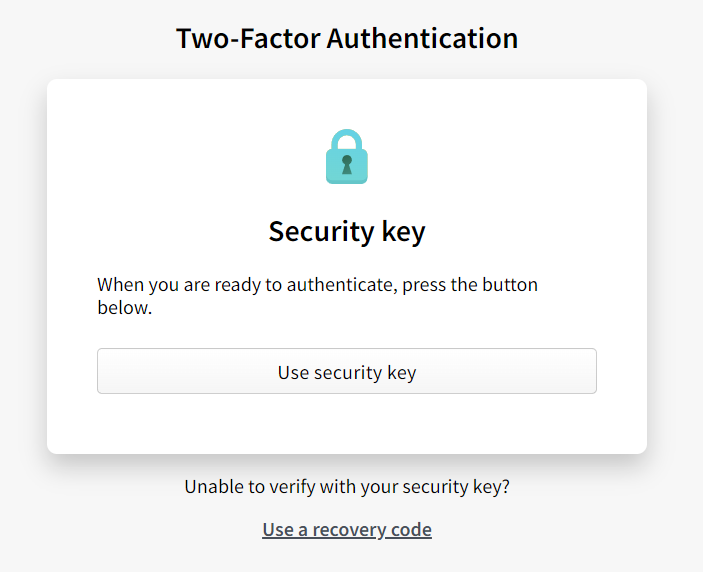
On the "Two-Factor Authentication" page, click Use a recovery code or request a reset.
-
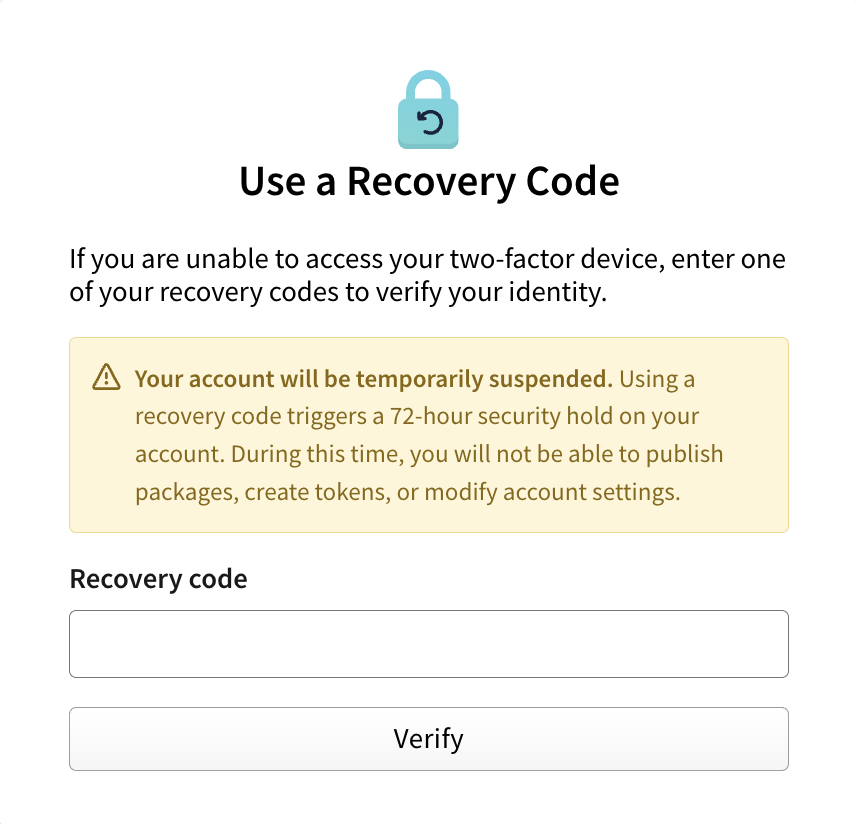
Enter an unused recovery code in the "Use a Recovery Code" prompt.
-
You are now logged into npm.
Viewing and regenerating recovery code
Note: Once you regenerate a set of code, all previous recovery codes become invalid. Each code can be used only once.
-
On the npm "Sign In" page, enter your account details and click Sign In.
-
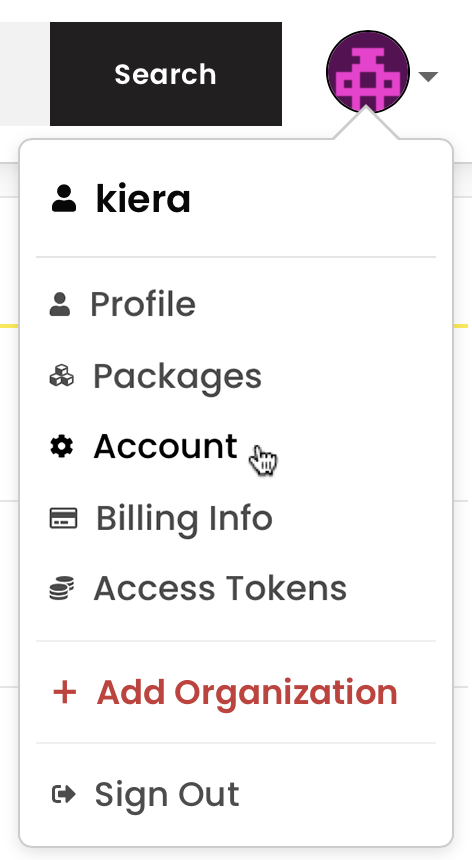
In the upper right corner of the page, click your profile picture, then click Account.
-
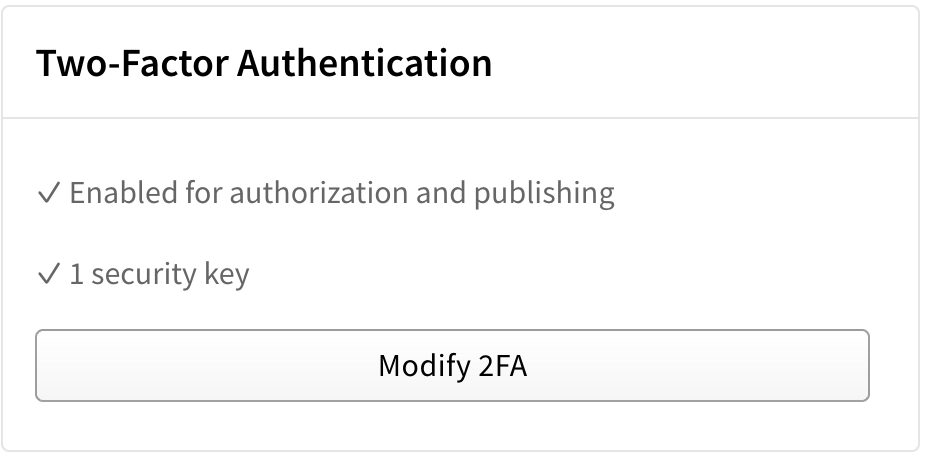
On the account settings page, under "Two-Factor Authentication", click Modify 2FA.
-
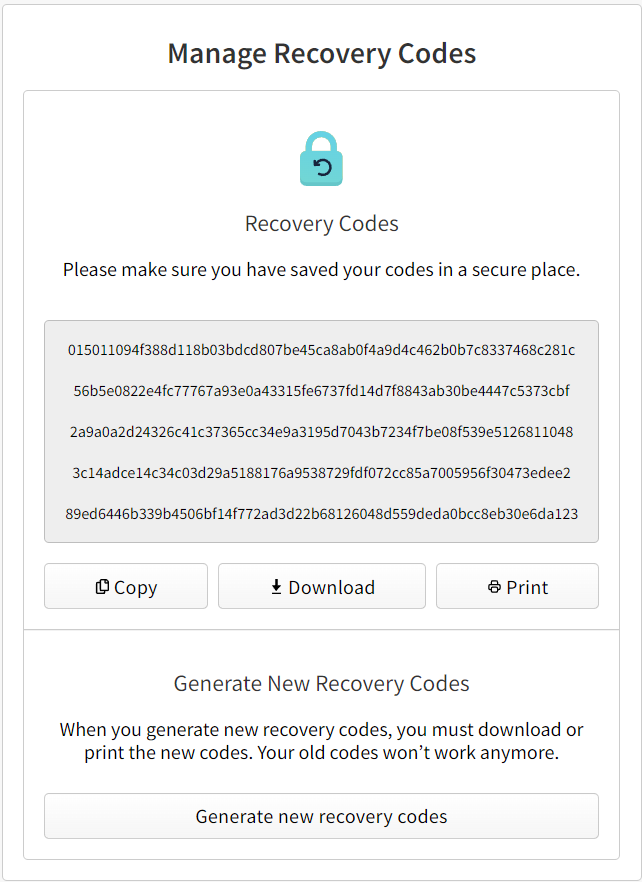
Click "Manage Recovery Codes" to view your recovery codes.
-
Click "Regenerate Code" to generate a new set of codes.
Misplaced recovery codes
If you have misplaced both your 2FA device and your recovery codes, you can contact our support team to attempt to recover your account. Provide as much information as possible to help us expedite the request faster.
-
On the npm "Sign In" page, enter your account details and click Sign In.
-
On the "Two-Factor Authentication" page, click Use a recovery code or request a reset.
-
Under the "Use a Recovery Code" form, click Try recovering your account.
-
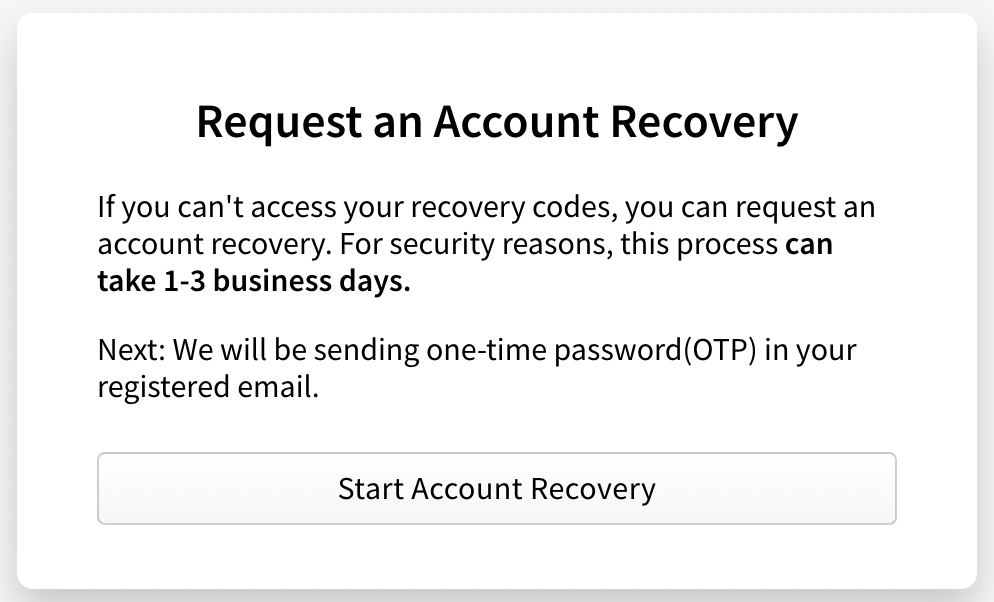
On the "Request an Account Recovery" page, click Start Account Recovery.
-
If you have access to your registered email, enter the one-time password sent to your email in the One-Time Password field, then click Verify Email Address. If you do not have access to your registered email, select Skip email verification at the bottom of the form.
- In the "Open a Support Ticket" form, enter the following information:
- In the Email field, enter an email address where our support team can contact you.
-
In the How can we help? section, select Reset my two-factor authentication (2FA).
-
If you need help with anything else, in the How can we help? section, select Other and enter more information in the Additional Details field.
- If you have previously linked a GitHub account to your npm account, select Connect to GitHub. This will help our support team verify your account.
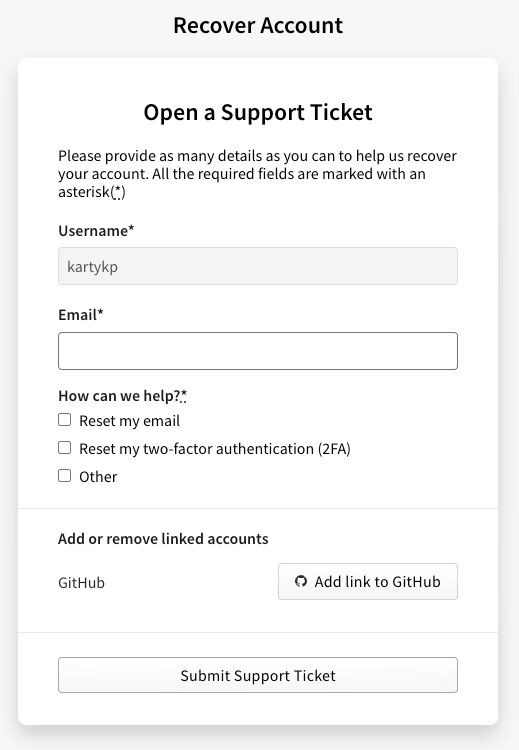
- At the bottom of the form, click Submit Support Ticket.

![dependabot[bot]](https://github.com/dependabot[bot].png?size=40)


